From Word Doc to Web: How to Turn a Static User Guide into a Real Website
·5 min read
A user guide stuck in a .docx file usually isn't read. No search, no working table of contents, no way to link someone straight to "the expense approval section," and it looks bad on a phone.
That's not a writing problem — it's a delivery problem. You can fix it without rewriting a word, just by changing the format. Here's how, using free tools, with no ongoing manual work once it's set up.
Before and after
Before: one .docx — a title page, Word's auto table of contents, then chapter after chapter of screenshots and button explanations.
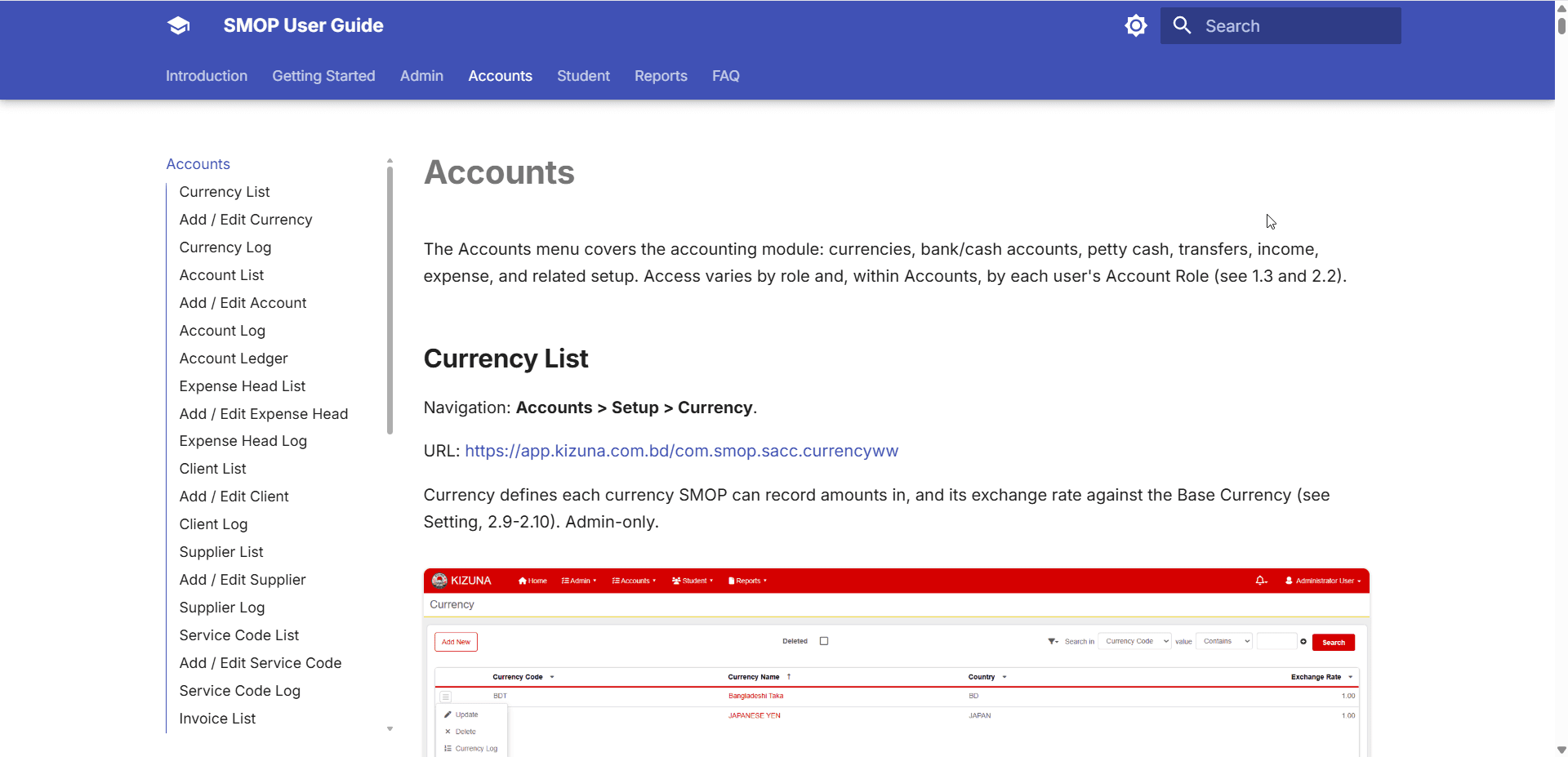
After: a real website — a tab per chapter, a sidebar showing where you are, instant search, dark mode, resized screenshots, optionally a second language.
Update the source doc later, and you just re-run the same steps — no manual rebuild.
The five steps
Word and websites assume different things: Word is one long scroll; a website is many linked pages with search. So this isn't a file conversion, it's a restructure:
Extract the text out of .docx into something a website tool can read.
Clean up what the conversion mangles.
Split one document into real pages with navigation.
Style it so it looks like a site, not a text dump.
Add what Word can't do — search, collapsible FAQs, a language switch.
This pulls out the body text and every embedded screenshot as its own file.
2. Clean up
Word carries formatting baggage that doesn't survive conversion cleanly:
Underlined text (Word's link style) converts into stray literal punctuation on the page.
Word's auto table of contents becomes a wall of dead links — the destinations were usually never filled in.
Bolded-not-styled headings — someone typed "FAQ" in bold instead of using a Heading style — vanish into the surrounding paragraph.
Images keep their fixed Word-layout pixel size and don't resize for different screens.
None of these are rare — they showed up in two real guides used to write this. Fix each once in a small cleanup script that runs on every conversion, and you never think about it again.
3. Split into pages
A website is many short pages, not one long one. Split the converted file at each chapter heading, and have a script rebuild the navigation to match. Add a chapter to the Word doc, re-run the script, it shows up as a new tab automatically.
4. Make it look like a site
MkDocs with the Material theme turns a folder of Markdown into a themed, responsive site — dark mode, real search, a sidebar that tracks your position. A little custom styling — consistent colors, comfortable reading width, framed screenshots — is what makes it feel finished instead of just technically working.
5. Add what Word can't do
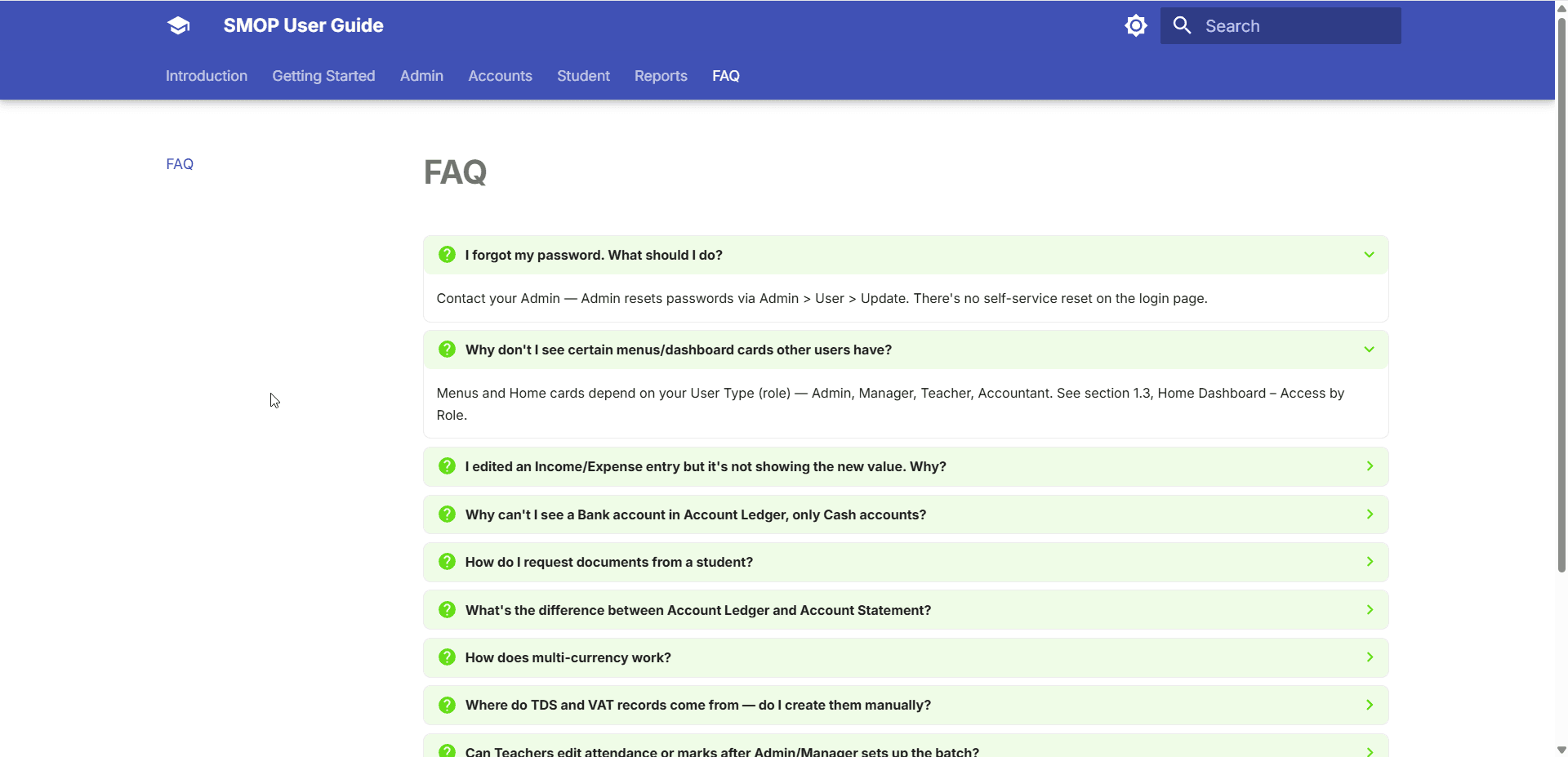
Collapsible FAQ — a wall of Q&A becomes a click-to-expand accordion.
A language switch — jumps to the same page, translated, instead of dumping the reader on the homepage.
Real search — type a word, get every matching page instantly.
It takes more than one pass
Real Word documents hide problems you only find by looking at the actual output:
A screenshot path is off by one character, and every image on the site quietly 404s.
A table has no header row (Word's "header row" style was never applied), so the site renders a blank first row.
A section vanishes because it was styled inconsistently in Word.
A nav label stays in English after you've translated every page — because menu labels live in the site config, not the page content.
Each is small once you spot it. The real lesson: build in a step where you actually check the rendered result — don't assume the conversion worked.
Do you need to be a developer?
Not really — just willing to run a few terminal commands and actually proofread the output, the same way you'd proofread before publishing. Pandoc and MkDocs are free, well-documented, and don't require writing real code.
Where an AI coding assistant genuinely helps (how the two guides behind this post were actually built) is that "spot what's broken, fix it" step — diagnosing why a table has a blank header row is tedious by hand across a 2,000-line document, fast for a tool reading the whole thing at once.
Takeaway
A Word-only user guide isn't finished — it's unpublished. The content's probably fine; it's just trapped in a format nobody wants to scroll through. Convert, clean up, split into pages, style it, and check the result. Do it once, write down the steps, and every future update is a re-run, not a re-build.